Dashboard screenshots
This page shows the main dashboard pages at desktop and phone sizes. It also explains how the screenshots are made and checked, for contributors who change the dashboard. Browsing and comparing describes what each page does.
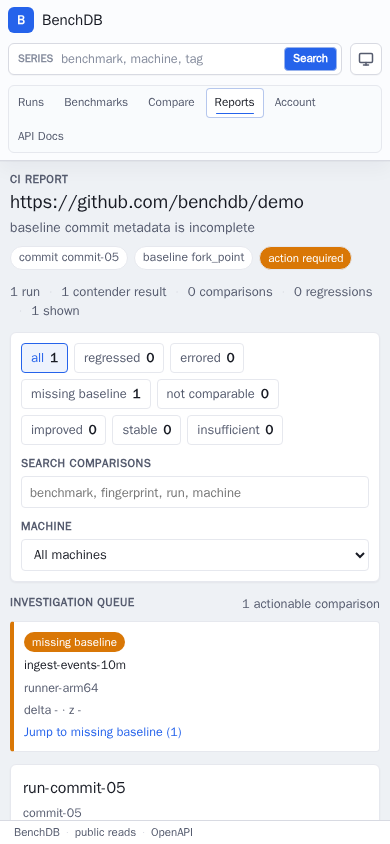
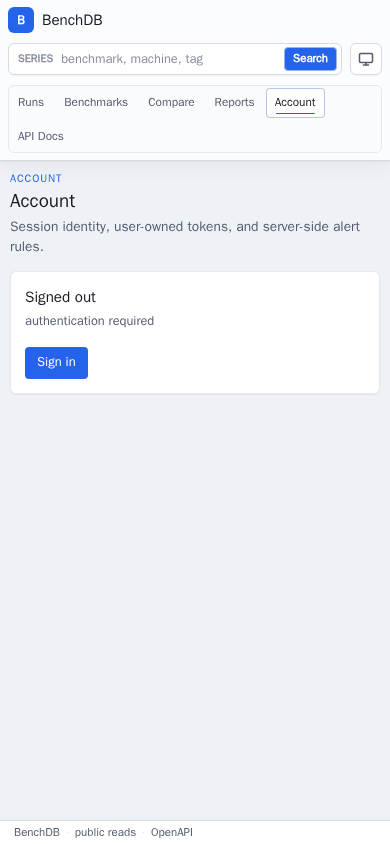
The screenshots come from a seeded demo database, not production data. Each page is captured at 1440×900 for desktop and 390×844 for phones. Phone captures show the navigation drawer closed.
Screenshot inventory
| View | Route captured | Purpose |
|---|---|---|
| Runs | / |
See recent runs and which ones need attention, then open a run, its CI report, or its results. |
| Benchmarks | /series?q=ingest-events-10m |
Find benchmarks by name, filter by machine, time window, and status, and see each one's latest change. |
| Benchmark trend | /benchmarks/:benchmark_id?range=all |
Follow one benchmark over time on each machine, with outliers, steps, and its results table. |
| Result | /results/:id |
See one result's measurements and metadata, and where it sits in its benchmark's history. |
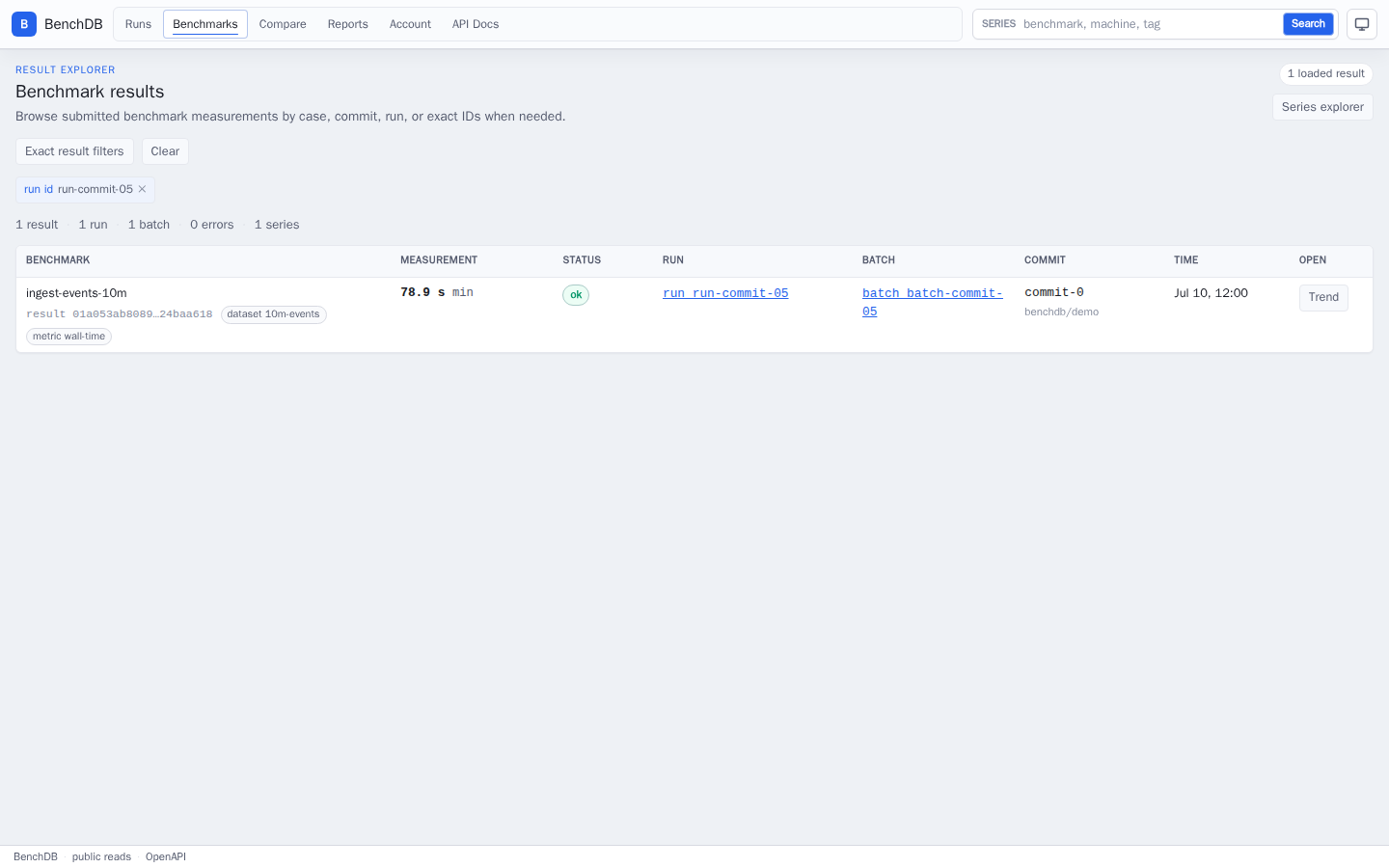
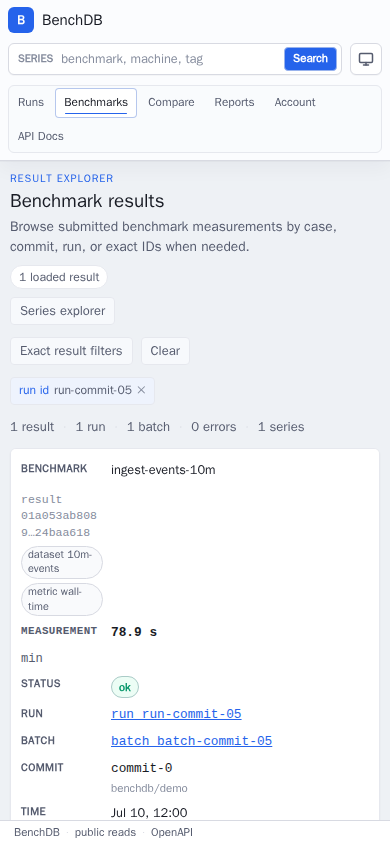
| Results list | /results?run_id=... |
List submitted results, filter by run or batch, and open a result or its trend. |
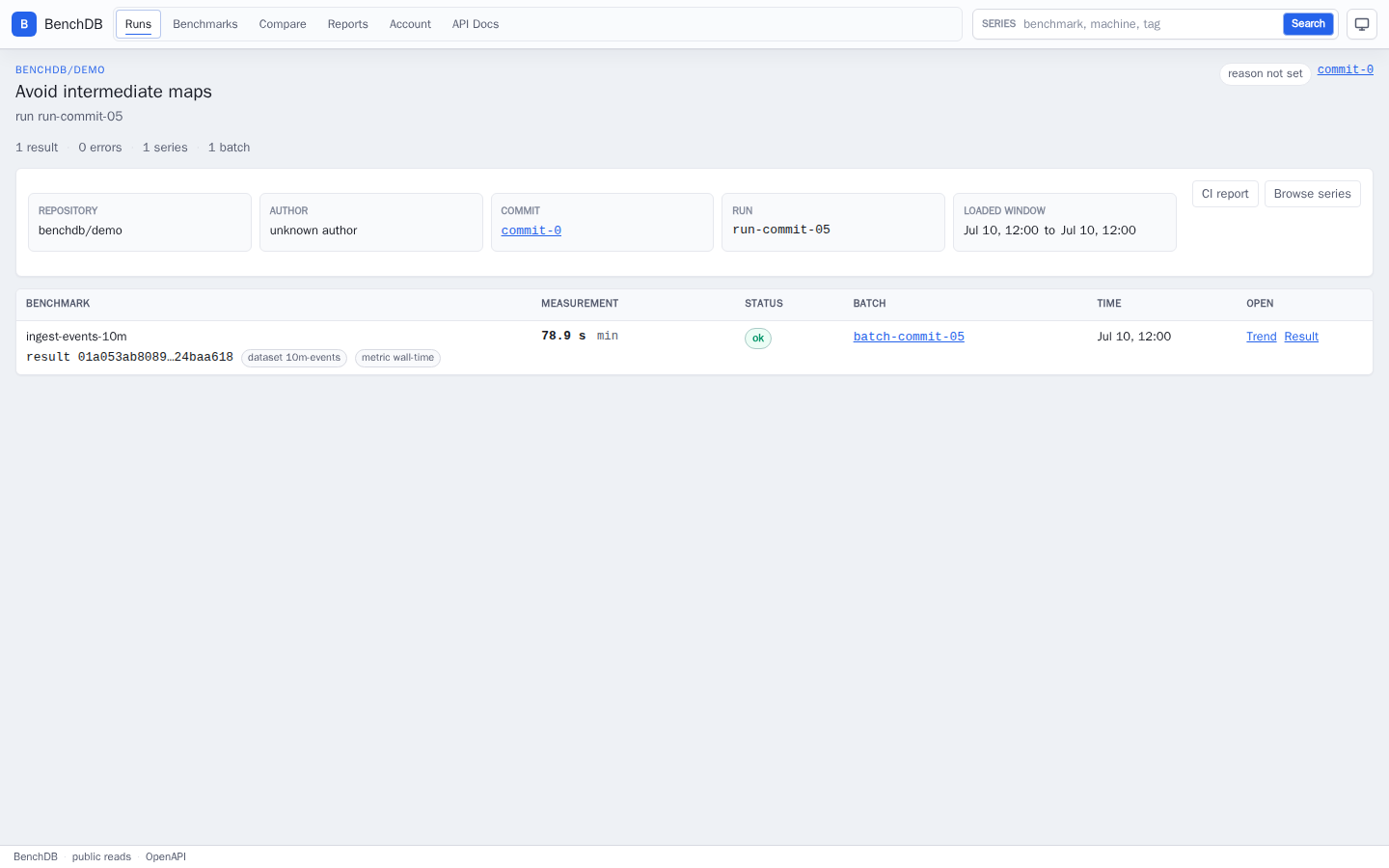
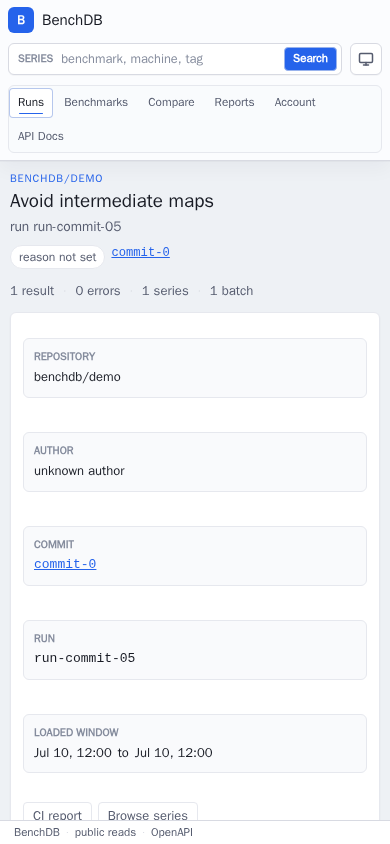
| Run | /runs/:run_id |
See one run's comparison with its baseline and open its results, batches, and trends. |
| Batch | /batches/:batch_id |
See one batch_id across runs, with its CI reports, results, and trends. |
| Compare | /compare?baseline=:id&contender=:id |
Compare two results as a percent change and against the baseline's history. |
| CI report | /ci/report?repository=...&commit_sha=...&run_ids=... |
Review a commit's CI verdict, its missing baselines, and the verdict for each benchmark. |
| Account | /account |
See who is signed in, and manage API tokens and alert rules. |
The manifest at web/docs-screenshots/screenshots.json lists the same
screenshots. make docs-screenshots-check fails when this page and the
manifest disagree on a screenshot, title, route, or purpose.
Runs
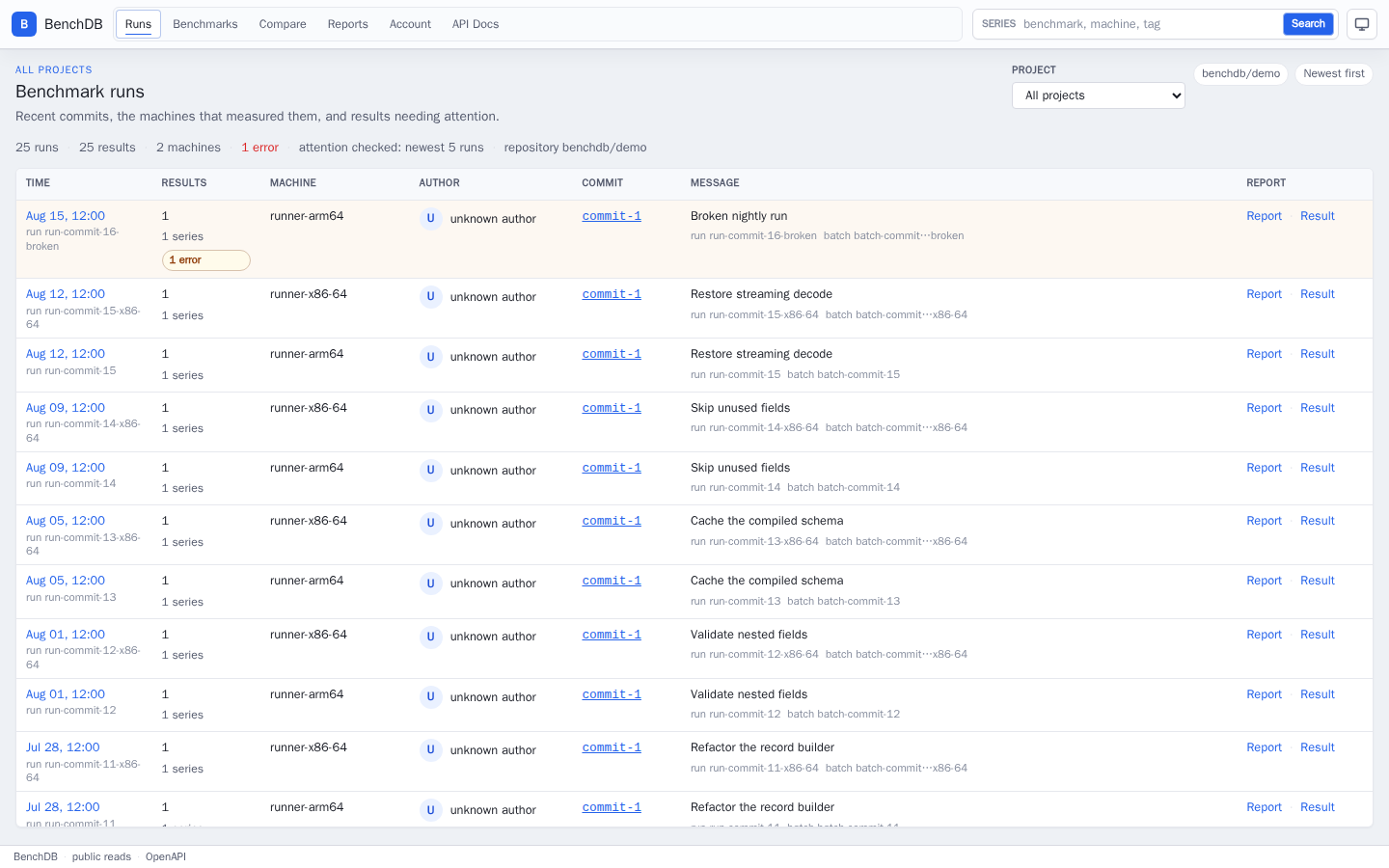
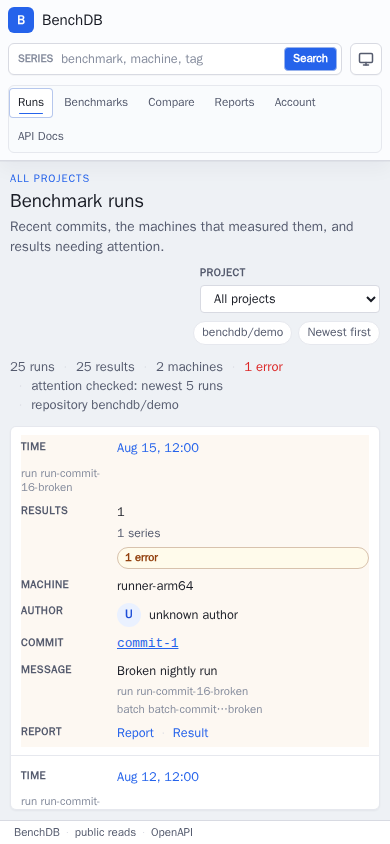
The Runs page lists the demo runs with their commits, result counts, and verdicts. On a phone, the table stacks each run's details into one block.
Benchmarks
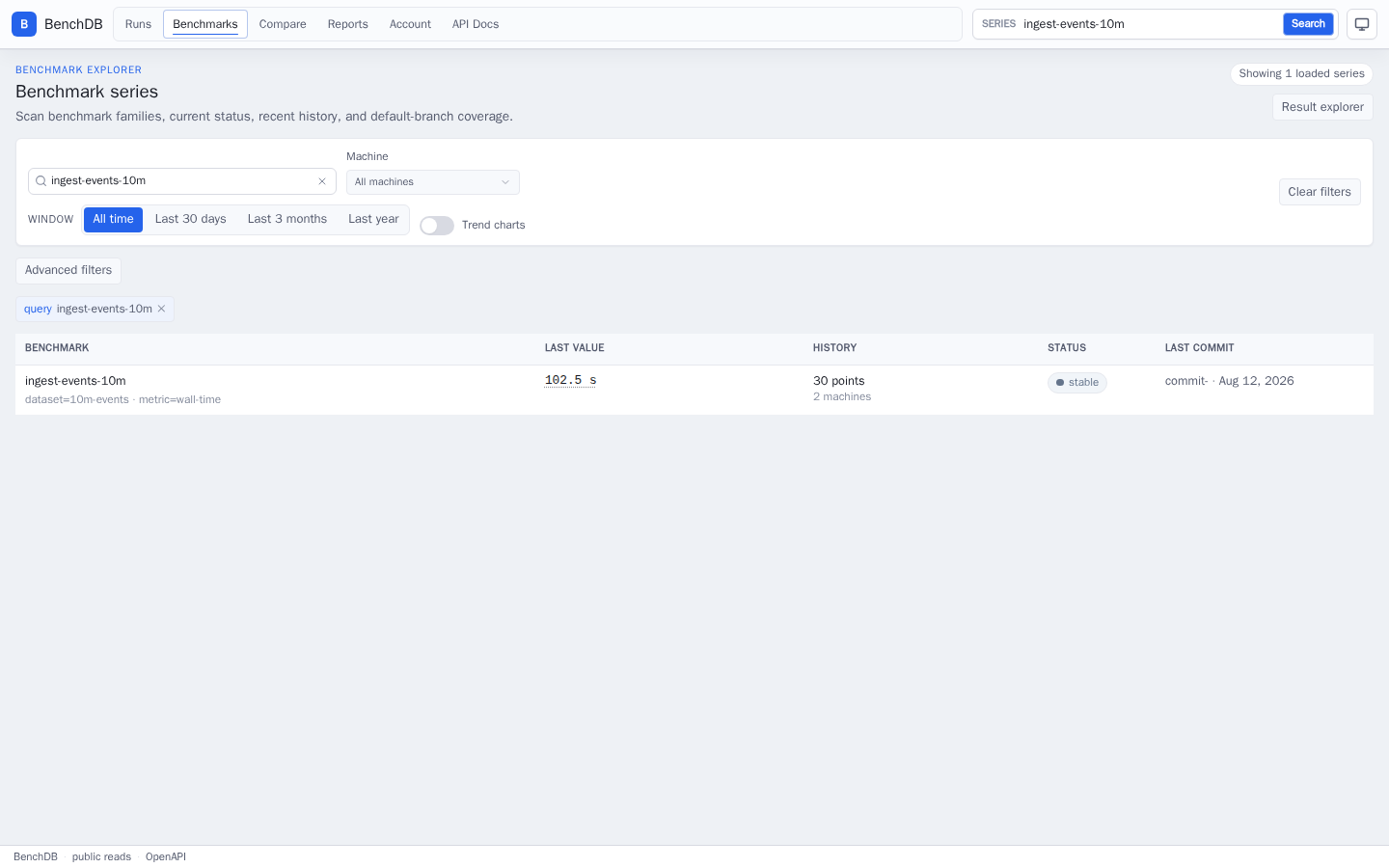
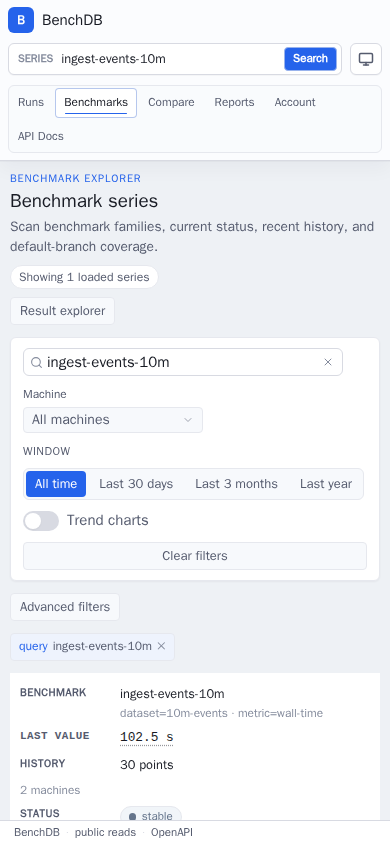
The Benchmarks page, searched for ingest-events-10m, shows each matching
benchmark's last value, history, status, and last commit. On a phone, each row
shortens to two lines.
Benchmark trend
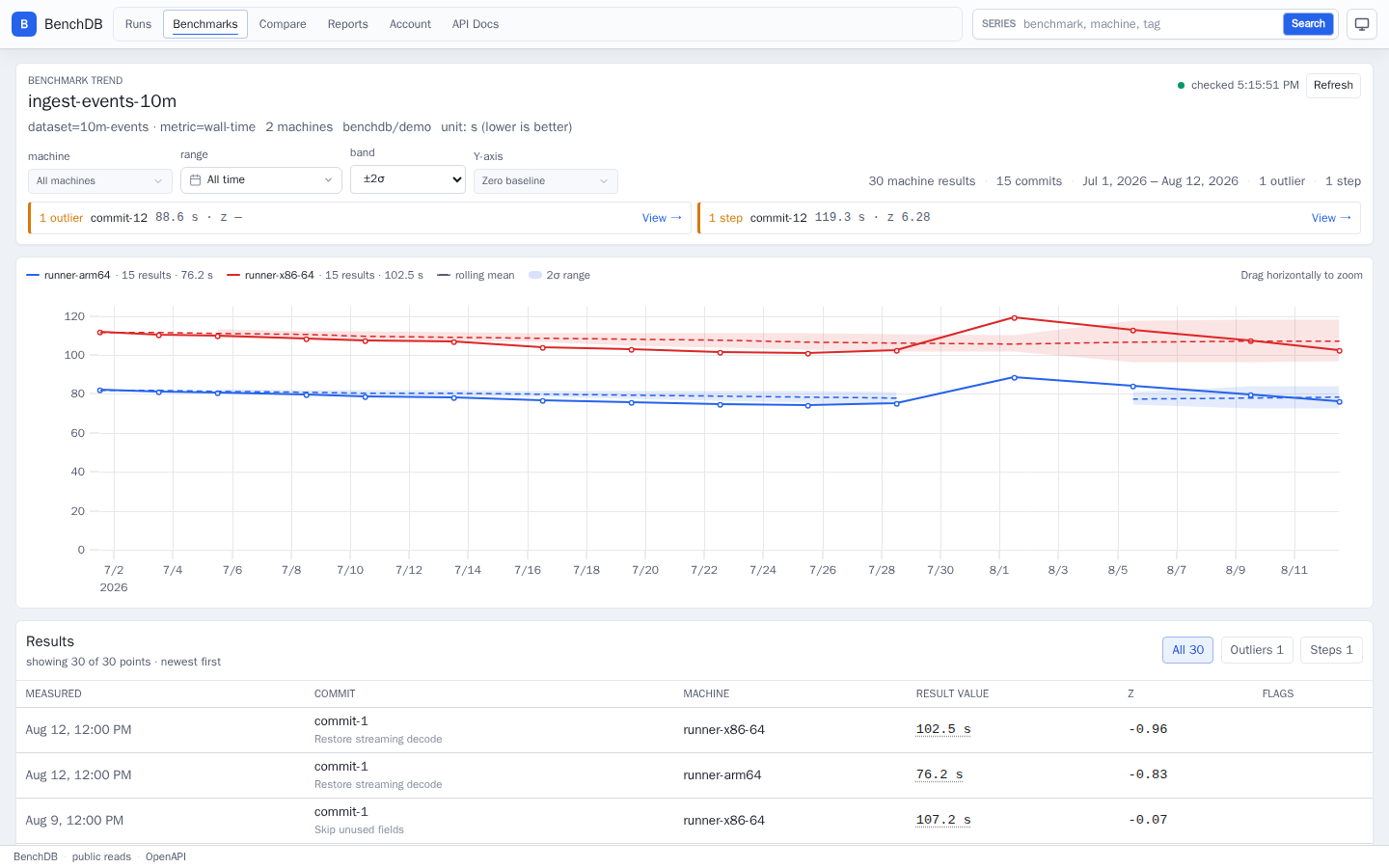
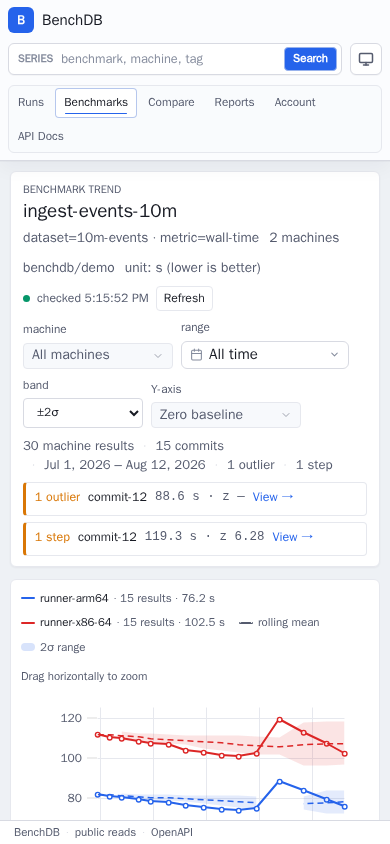
The trend page for ingest-events-10m shows its whole history on two machines,
runner-arm64 and runner-x86-64, with one chart line per machine and the
results table below.
Result
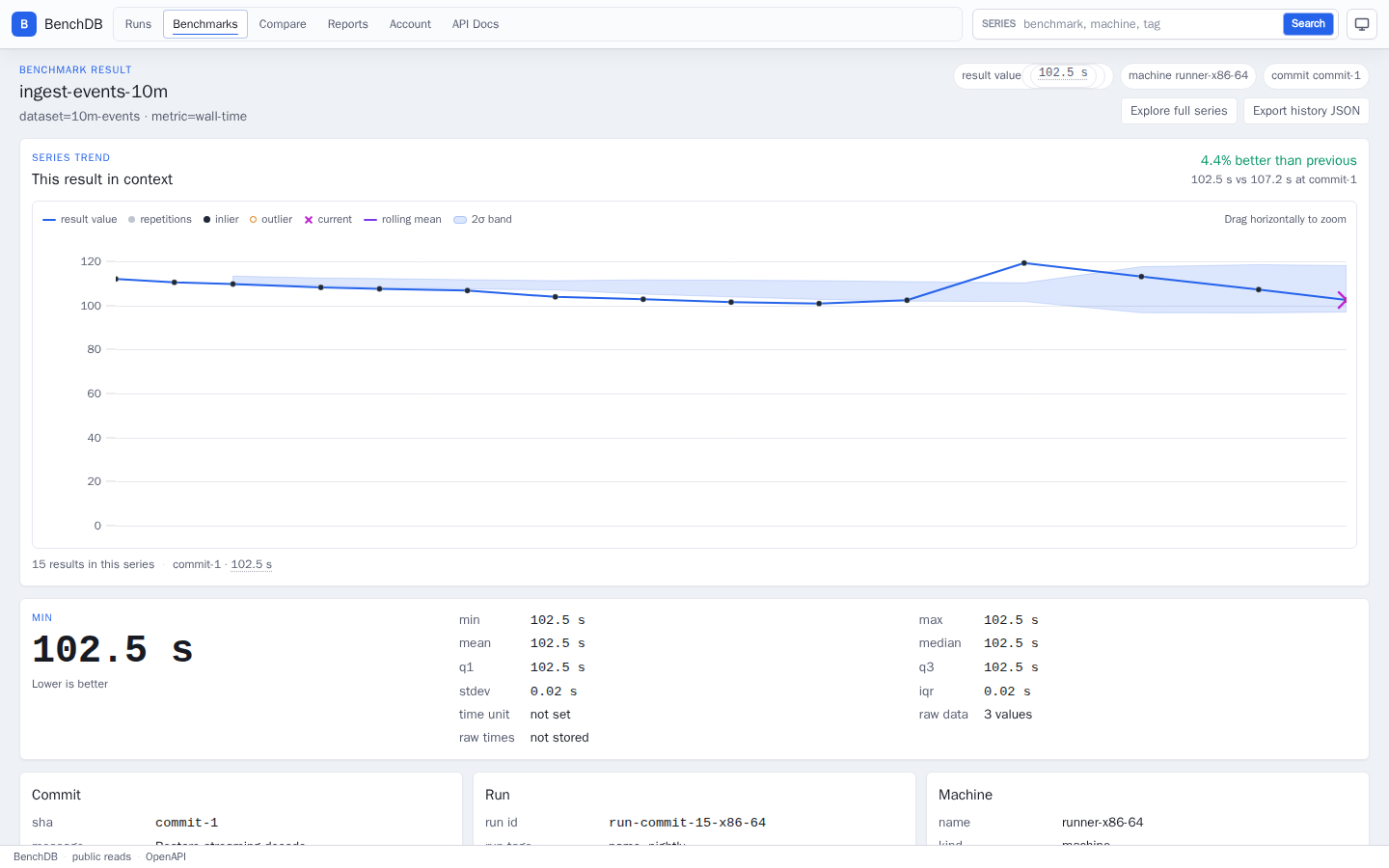
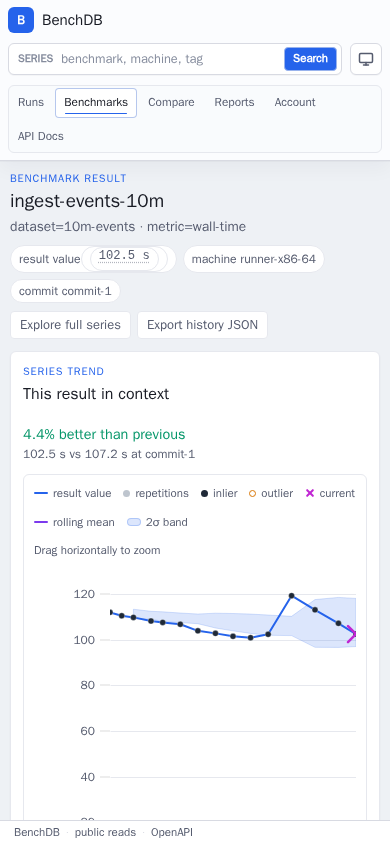
The result page shows the latest ingest-events-10m result, its comparison with
the previous point, and its series chart. The capture is signed out, so the
page has no Manage section.
Results list
The results list is filtered to one run. A chip above the table removes the filter.
Run
The run page opens with the run's CI report summary and a link to the full report.
Batch
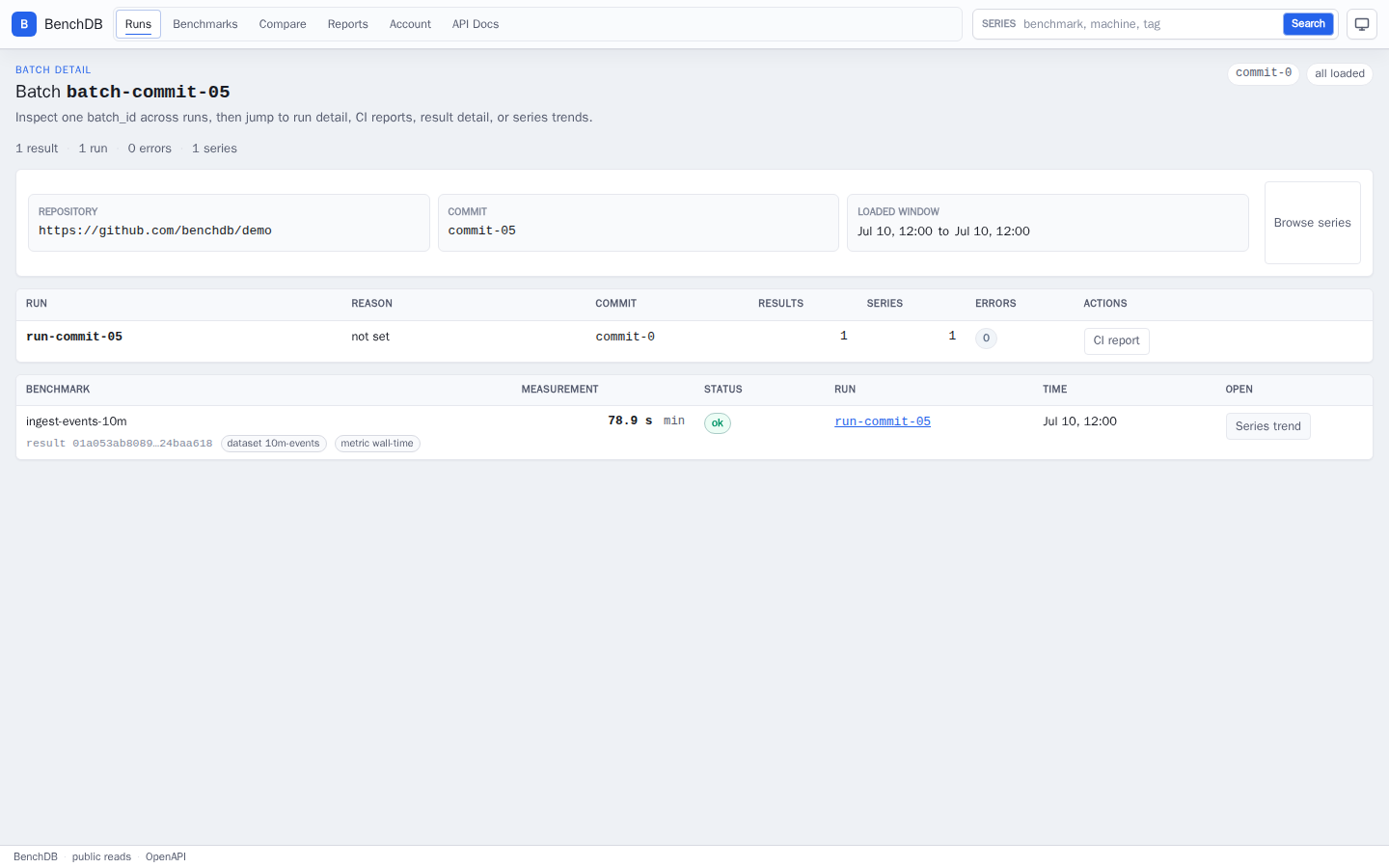
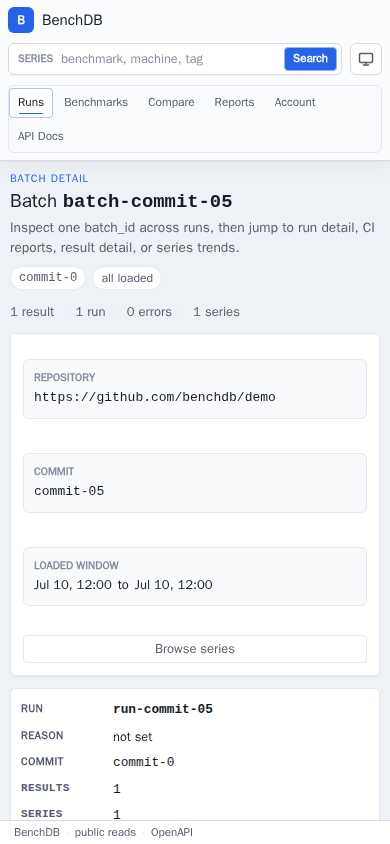
The batch page lists the batch's runs, then its results.
Compare
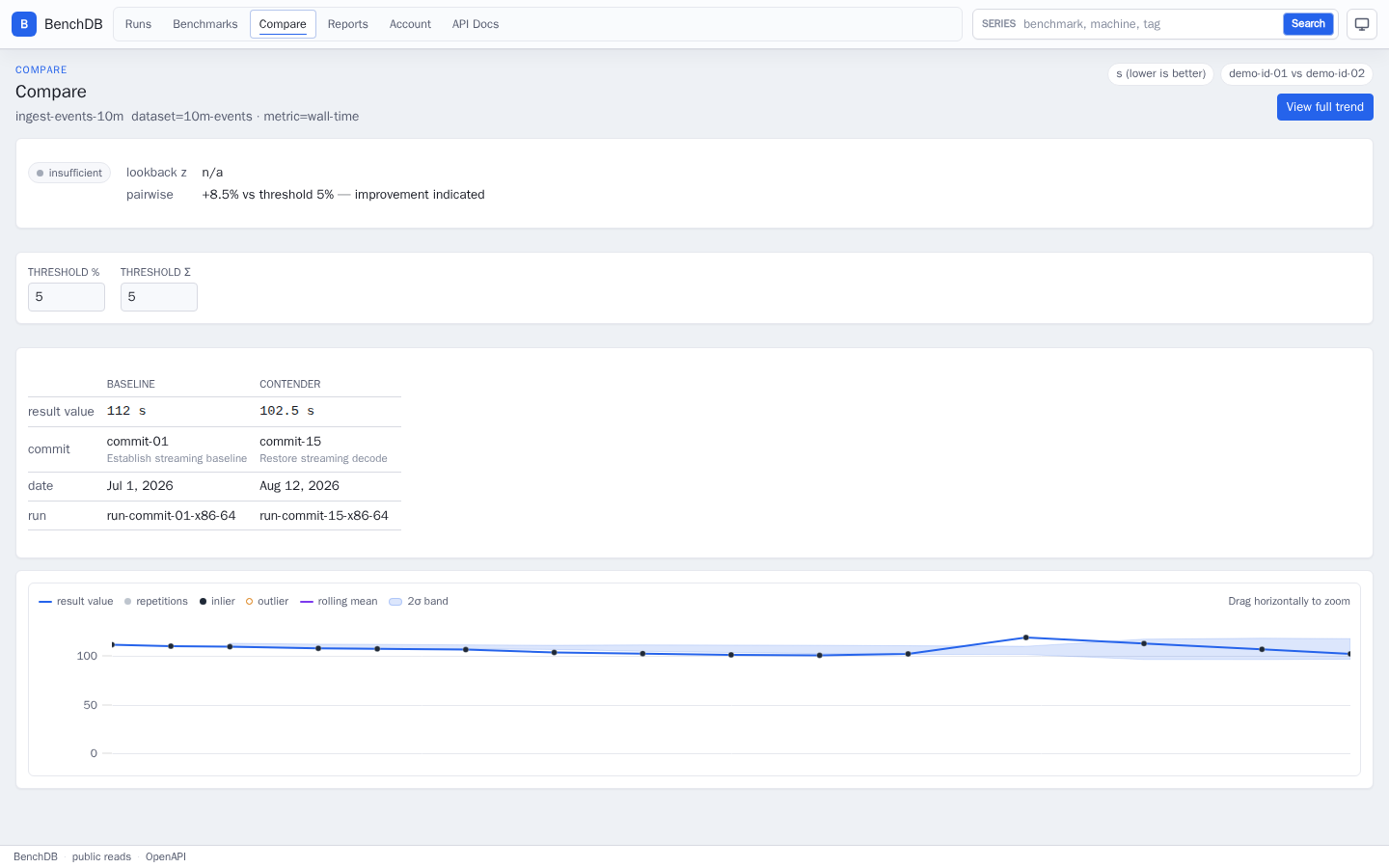
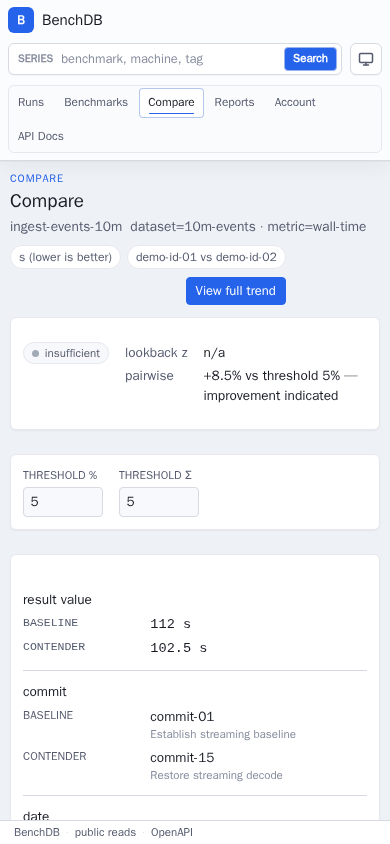
The compare page scores the newest ingest-events-10m result against the
oldest. It shows the status, the lookback z-score and pairwise lines, and a
chart that marks both results.
CI report
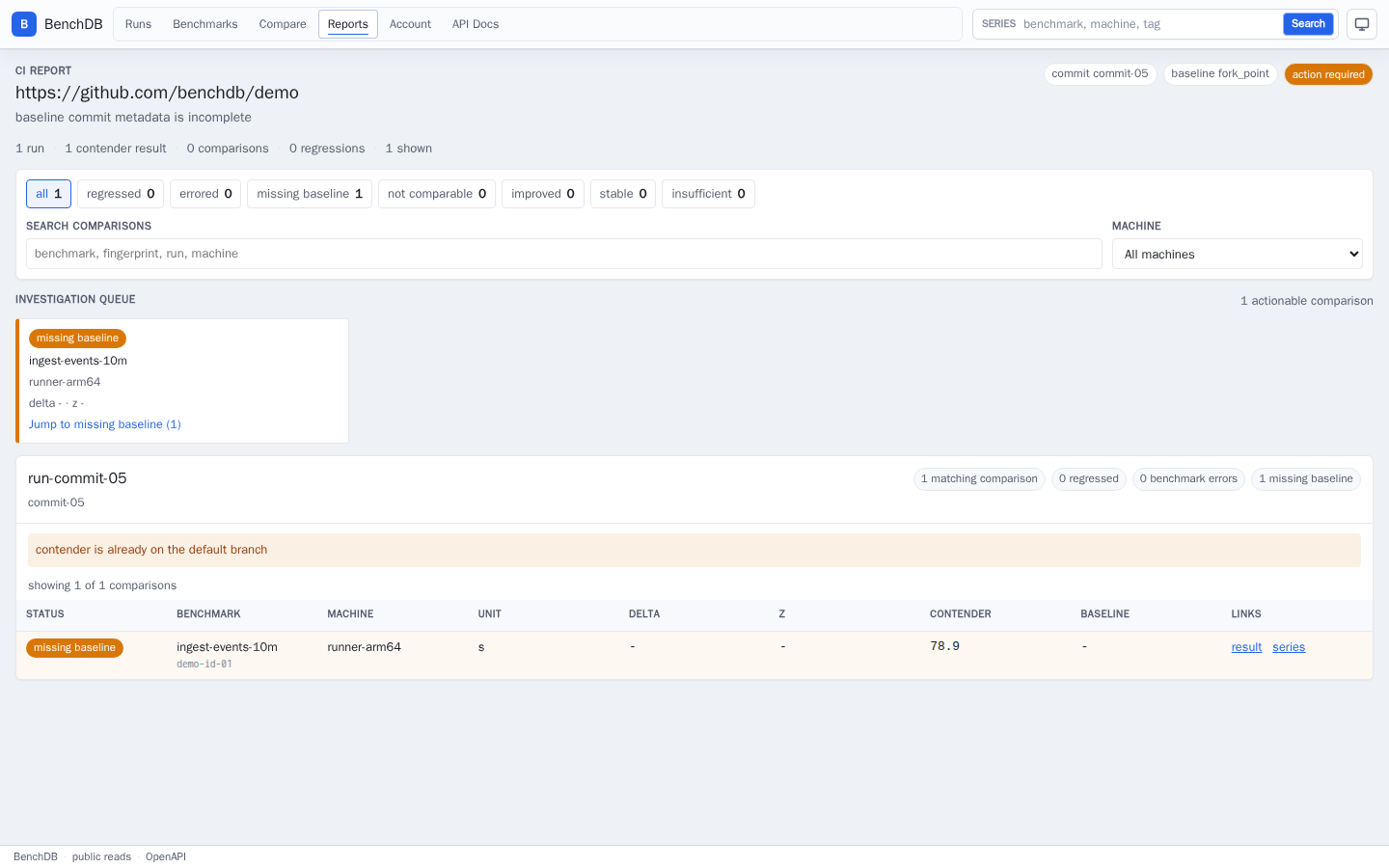
The CI report covers one demo run at its commit, compared with its fork-point baseline.
Account
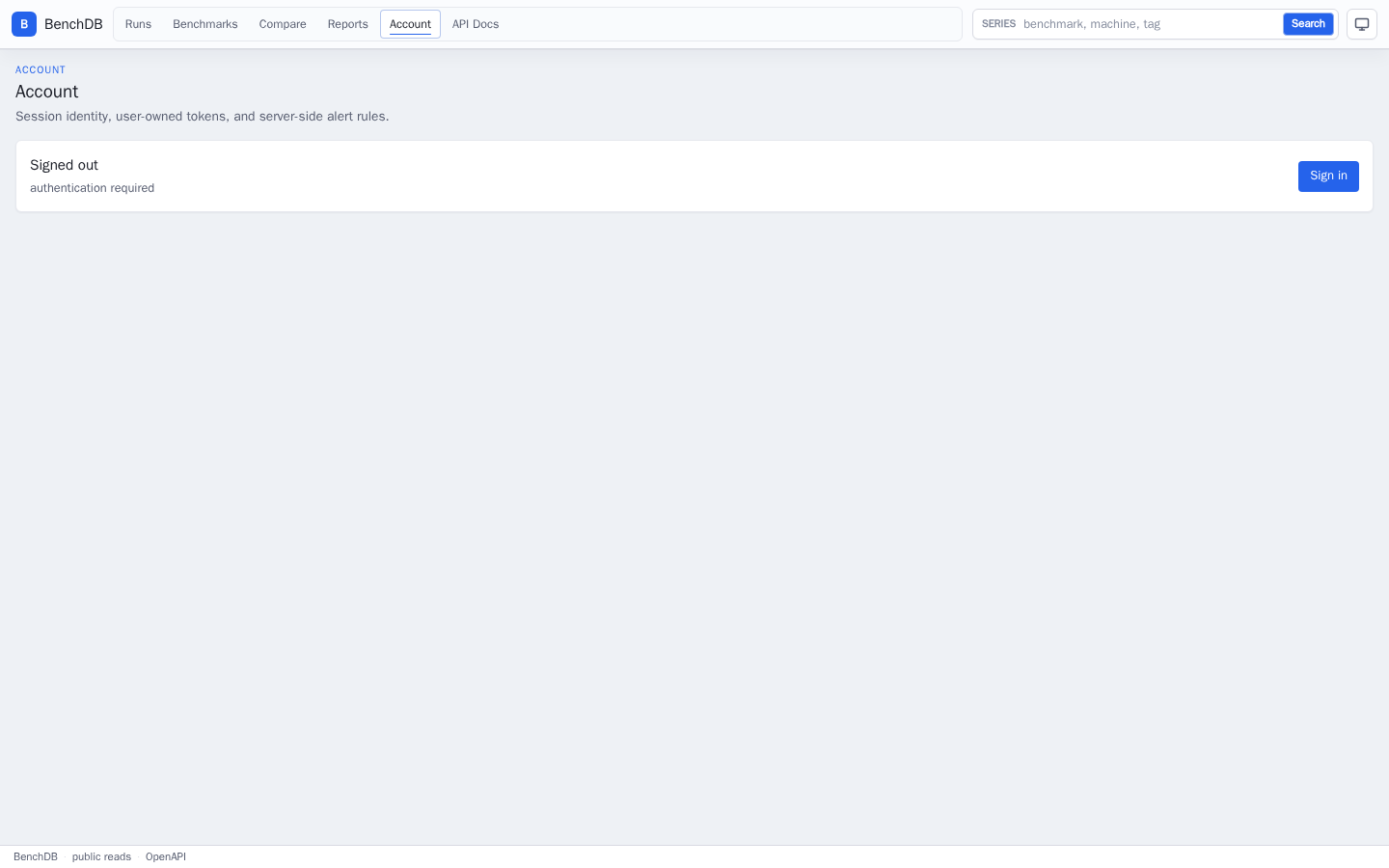
The capture is signed out, so the Account page shows only the Sign in link. Signed-in users also see their identity, API tokens, and alert rules here.
Refresh the screenshots
Capture the screenshots and build the docs site from a clean checkout:
make docs-screenshots runs these steps:
- It starts
docker-compose.server.ymlanddocker-compose.docs-screenshots.ymlunder a separate Compose project. The server creates the schema, seeds the demo data, and runs with authentication on. - It reads
/api/auth/capabilitiesand stops unless the response showsauth_disabled=falseandcan_write_results=false. The screenshots show the public read-only product, so the server needsBENCHDB_AUTH_DISABLED=false. - It captures the pages with Playwright in a container built from
Dockerfile.docs-screenshots. The container installs the exact@playwright/testversion pinned inweb/package.json. - It writes the PNGs and
dashboard-screenshots-evidence.jsontodocs/site/assets/screenshots/, or toBENCHDB_DOCS_SCREENSHOT_OUT_DIRwhen set. Git ignores these files. - It runs
make docs-screenshots-checkon the new files and stops the Compose stack.
Page text shows https://benchdb.example in place of the local server address.
Set BENCHDB_DOCS_SCREENSHOT_PUBLIC_BASE_URL to use another address.
make build-docs uses verified screenshots in docs/site/assets/screenshots/
when they exist. Otherwise it fetches the orphan docs-screenshots branch,
which holds the release-ready screenshots. The build stops if a screenshot is
missing, the wrong size, blank, or out of date with the manifest.
The PNGs are not committed with the code. The docs-screenshots CI job
captures them and uploads them with the evidence JSON as the
benchdb-dashboard-screenshots artifact. The website workflow captures its own
screenshots and builds the site from them.
What the checks cover
Before it writes each image, the capture test checks the page:
- Charts on the trend, result, and compare pages have painted pixels.
- The page does not scroll sideways at either size.
- On phones, the menu button opens the drawer and every primary navigation link fits on screen.
- The desktop result page shows no write actions.
- Generated 32-character hex IDs are replaced with labels such as
demo-id-01. - The local server address does not appear in page text or form fields.
make docs-screenshots-check always runs the checker's own tests, confirms that
web/package.json pins an exact @playwright/test version, and compares this
page with the manifest. When BENCHDB_DOCS_SCREENSHOT_OUT_DIR is set or
docs/site/assets/screenshots/ exists, it also checks every PNG. Each one must
exist, match its viewport size, and not be blank, meaning no single color
covers more than 99.5% of it. The evidence JSON must match the files' sizes and
SHA-256 digests.
These checks catch broken captures. They do not replace reviewing the pages yourself.